

Introduction
Most of the game clients support controllers. How you set one up depends first on whether your game has native controller support. Natively supported games — connect your controller, then follow the section for your controller type:- Xbox controllers: Plug-and-play. Jump to this method.
- PS4 & PS5 controllers: Need DS4Windows to work outside of Steam. Jump to this method.
- PS3 controllers: Need ScpToolkit to work outside of Steam. Jump to this method.
Games With Native Controller Support
These clients have built-in controller support. Just connect your controller using the method for your controller type below — no Steam Input layout needed.- Modern Warfare (COD4) — singleplayer only; multiplayer uses Steam Input
- World at War (T4)
- Modern Warfare 2 (IW4x)
- Modern Warfare 3 (IW5) — multiplayer only; singleplayer (IW5-Mod) uses Steam Input
- Black Ops (T5)
- Black Ops 2 (T6)
- Ghosts (IW6x)
- Advanced Warfare (S1x)
- Black Ops 3 (BOIII)
- Modern Warfare Remastered (H1-Mod)
- Infinite Warfare (IW7-Mod)
- Black Ops 4 (Project BO4)
- MW2 Campaign Remastered (H2-Mod)
- HorizonMW (HMW)
Before using a controller on these games, disable Steam’s controller support (or exit Steam completely).Go to Steam > Settings > Controller > General Controller Settings and untick the checkboxes shown below.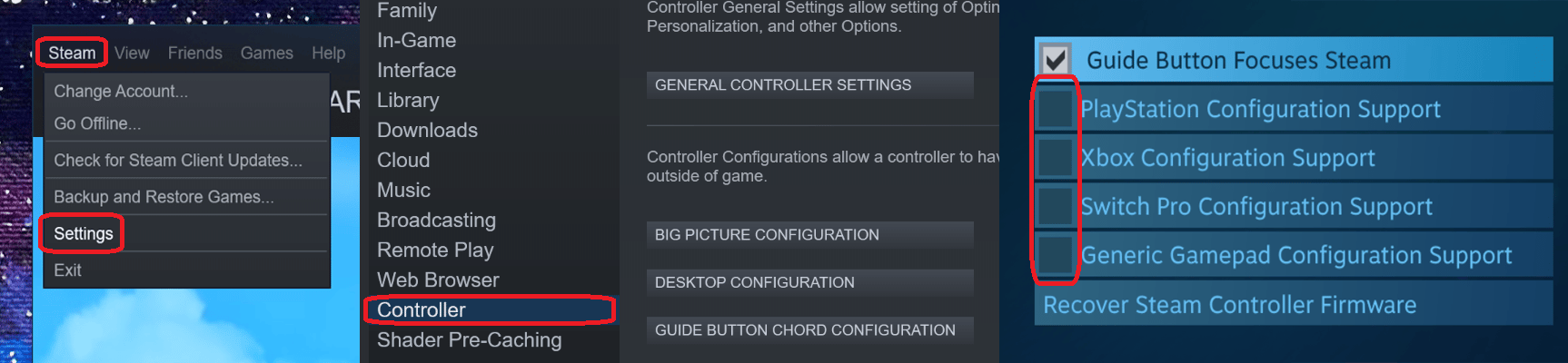
On most of these games you still need to turn the controller on in the in-game settings before it works, usually under Settings > Controls > Gamepad.
Xbox Controllers
Xbox controllers are plug-and-play with the natively supported game clients. Simply plug your controller into your computer and launch the game.PS4 & PS5 Controllers
PS4 and PS5 controllers require additional software to work outside of Steam on Windows. We’ll use DS4Windows.1
Download DS4Windows
Download DS4Windows. We recommend the
DS4Windows_VERSION_x64.zip file.2
Extract it
Open the downloaded zip and copy the
DS4Windows folder somewhere safe, like your Documents folder.3
Run DS4Windows
Open the extracted folder, then run 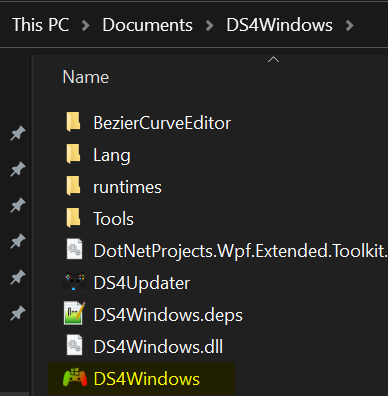
DS4Windows.4
Install .NET (if prompted)
If you get a message like this, click Yes.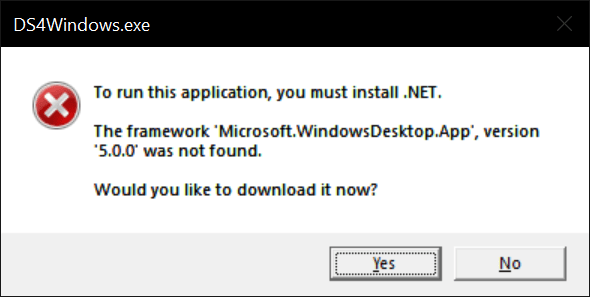
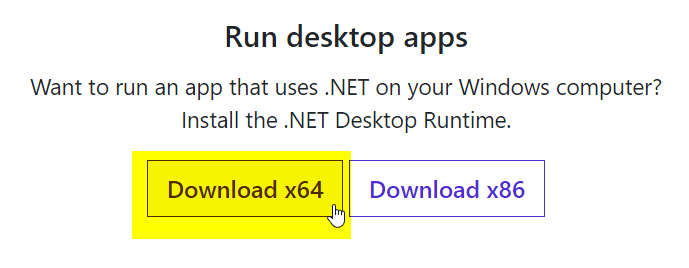
If you still get an error after installing, download and run the .NET redist linked on the DS4Windows release page, then try DS4Windows again.
5
Choose a save location
Select Appdata for your SaveWhere path.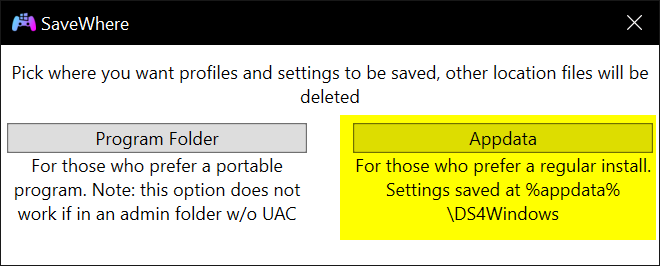
6
Install the ViGEmBus driver
Install the ViGEmBus driver when prompted.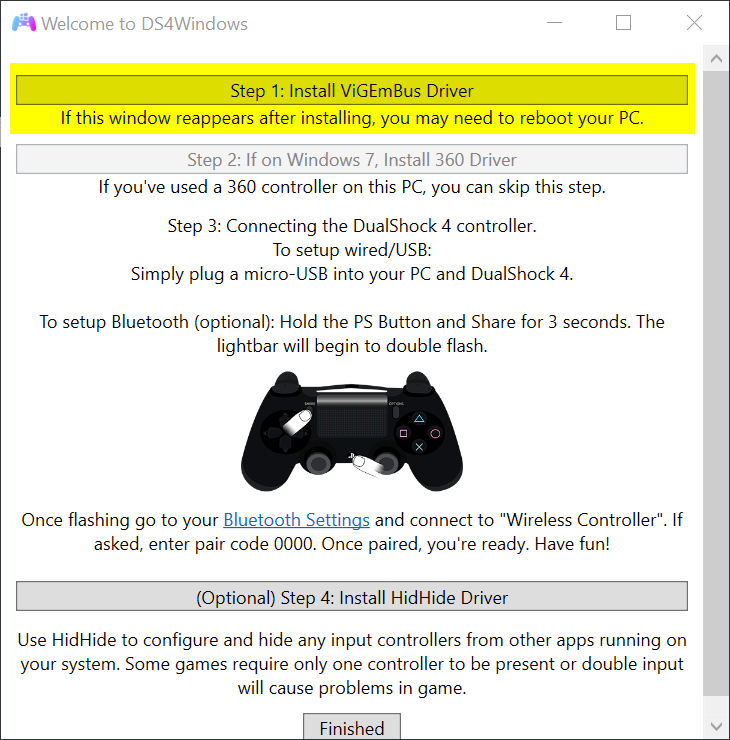
7
Connect your controller
Connect your PS4 or PS5 controller to your PC.
8
Finish setup
Once connected, click Finish on the Welcome to DS4Windows screen. Configure your controller and start DS4Windows in the main window.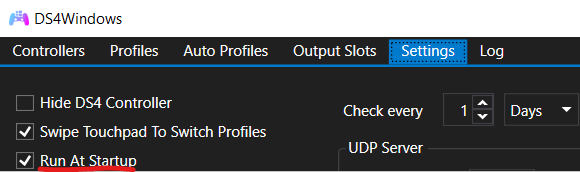
9
Test in game
Launch a game and check that your controller works.
DS4Windows must be running to detect your controller, so enable it on startup in the settings.
PS3 Controllers
Like the other PlayStation controllers, PS3 controllers need additional software to work outside of Steam on Windows. There are several tools that work, but this guide uses ScpToolkit.1
Download ScpToolkit
Download ScpToolkit.
2
Run the setup
Open the downloaded setup and click Next without changing any settings. At the end, click Run Driver Installer.
3
Install the drivers
Follow all the on-screen instructions and read everything carefully — you need to initialize the DualShock controller and install the required drivers. Clicking Next does not install anything; you have to click the install buttons shown on screen, like the one below. You can skip installs you don’t need, such as Bluetooth.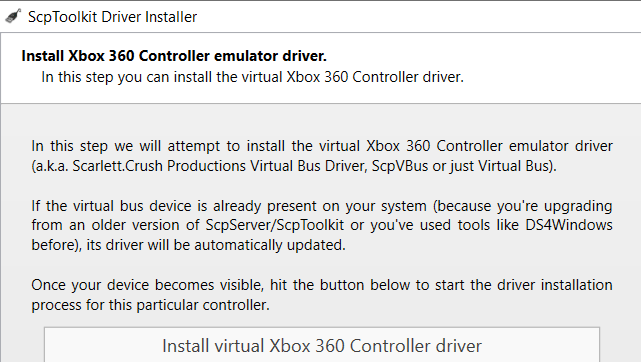
Games Without Native Controller Support
Some games have no built-in controller support. For these, you can use Steam Input, which maps your controller to keyboard and mouse inputs. This works for both DualSense and Xbox controllers since Steam supports both — DS4Windows is not needed here.These are community-made layouts, not official controller support. The game still treats you as if you’re playing on keyboard and mouse, since Steam Input simply sends keyboard and mouse inputs from your controller.
1
Add the game as a non-Steam game
In Steam, click Games > Add a Non-Steam Game to My Library…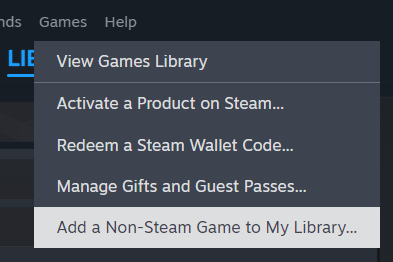
2
Enable Steam Input
Connect your controller, then open the game’s page in your Steam library. Click the controller icon near the top right.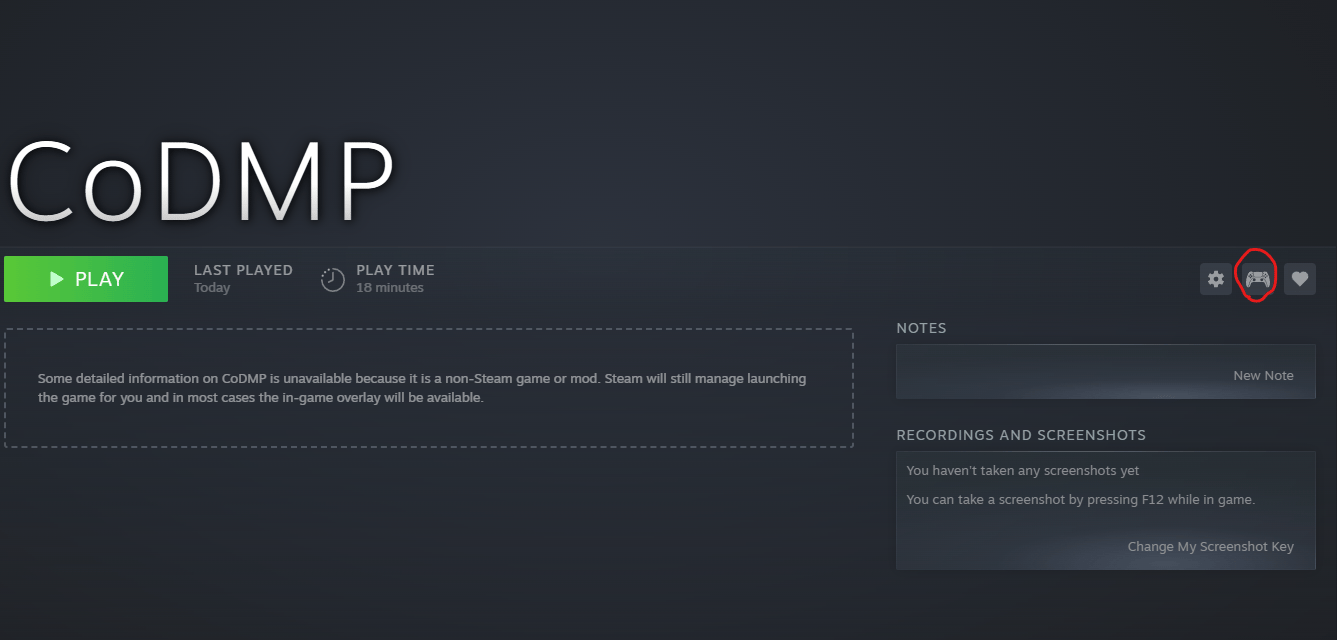
3
Open Community Layouts
In the layout window, click Community Layouts to see all public presets made for this exe by other players.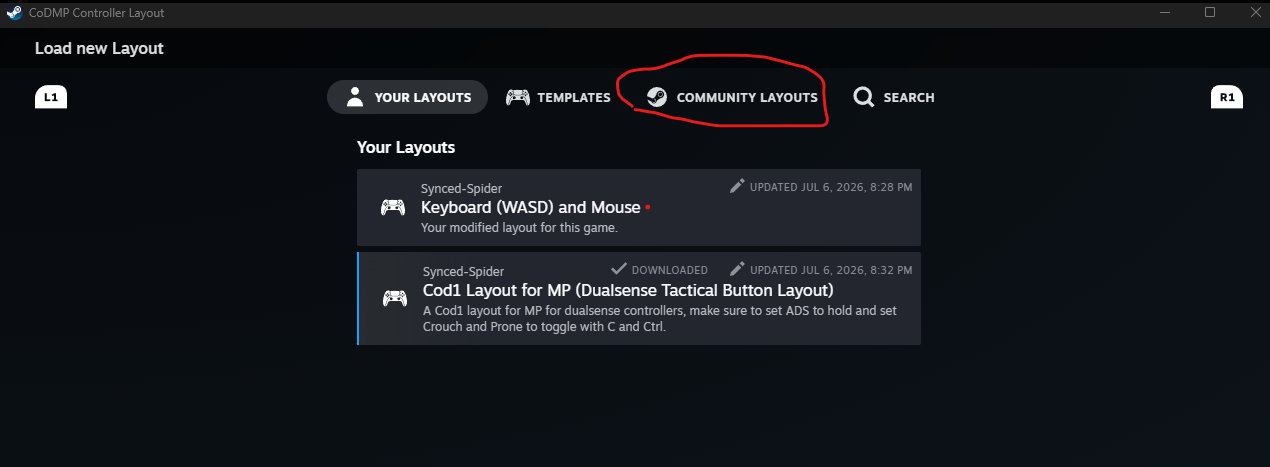
4
Choose a layout
Pick a layout and apply it. Layouts made for your game will show up under their creator’s name — for example, the COD1 layouts by Synced-Spider.
5
Launch and play
Launch the game from Steam (via the non-Steam game entry you added) and your controller will work through the layout you selected.
My Controller Still Isn’t Working
Any controller
Any controller
- Make sure the controller is enabled in the game’s settings, usually under Settings > Controls > Gamepad.
- Try your controller in an actual match rather than the menus — not all games support controllers in the menus.
- Double-check that you unticked the right Steam settings (see Games With Native Controller Support) or fully exited Steam by right-clicking the Steam icon in the Windows taskbar tray and clicking Exit.
DS4Windows (PS4 / PS5)
DS4Windows (PS4 / PS5)
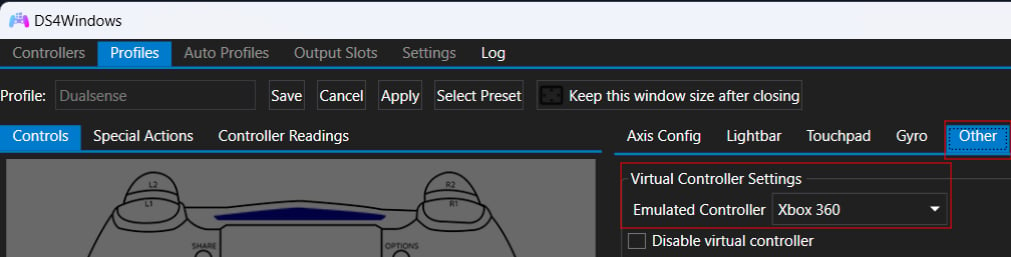
Make sure the default profile is selected.
World at War (T4)
World at War (T4)
If everything looks right but your controller still isn’t working on World at War, try applying the game’s controller config.
Need Help?
If you need more help or support, please join our Discord.Credit to Plutonium — this guide is adapted from their original Controller Support guide.